
SnapTrade offer: 3 weeks free, then 50% off Pro for 6 months


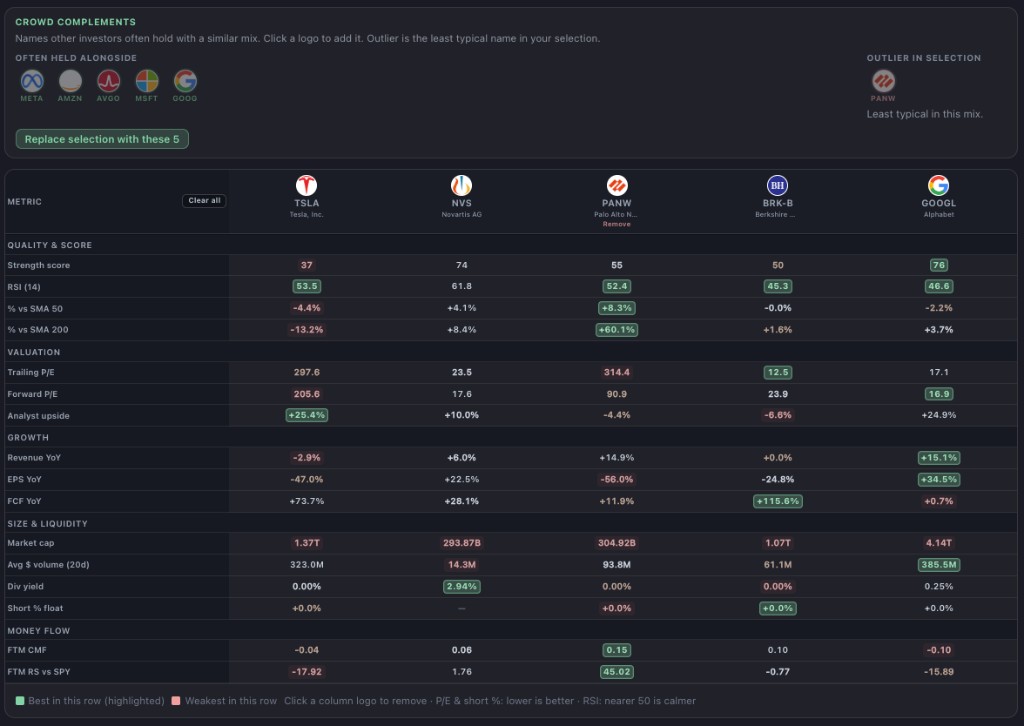
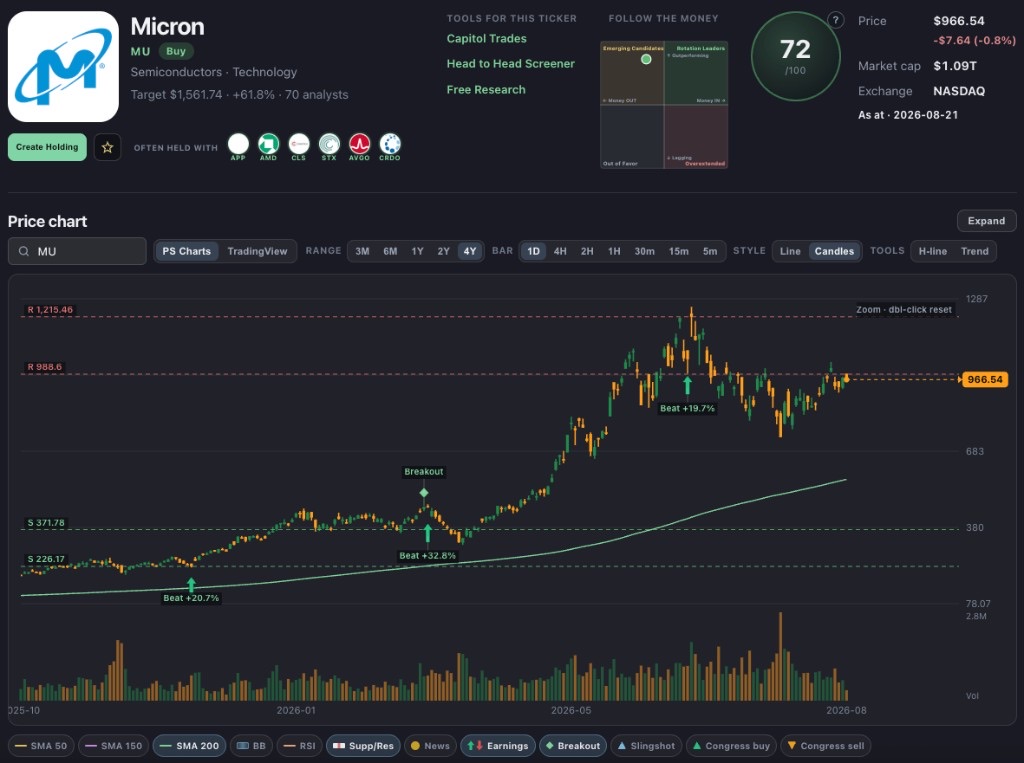
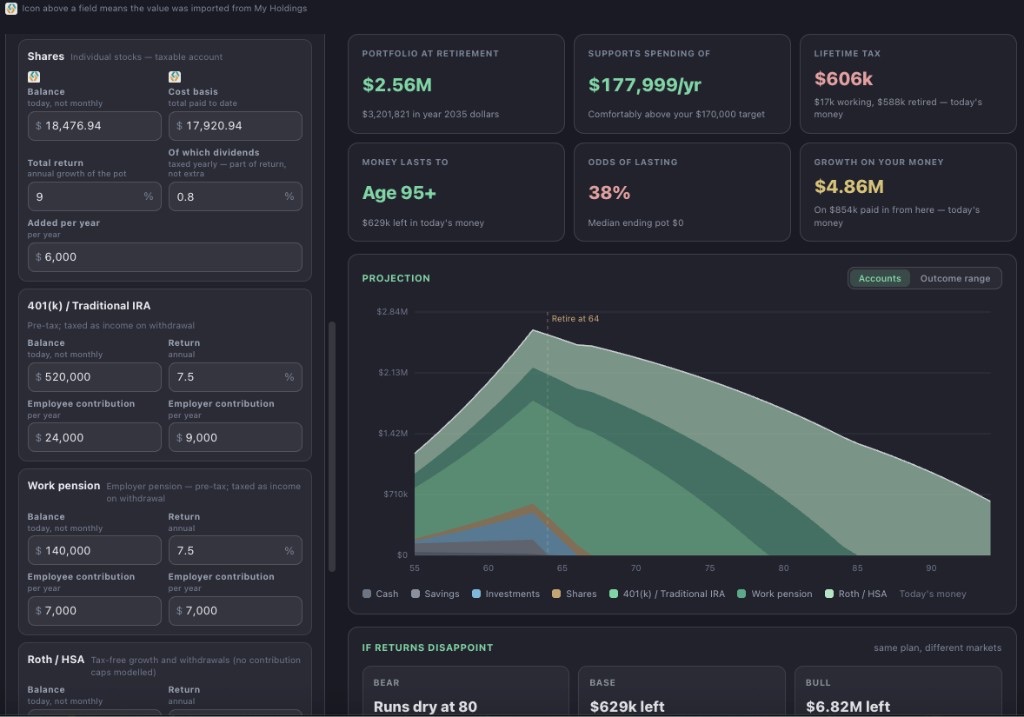
Seamlessly connect all your brokerages with one account with SnapTrade. One neatly aggregated view of all your holdings. This is the ultimate in clever portfolio management. Once connected, Picksmith has an array of tools to help you keep your portfolio on track. The AI assistant is there to assist you with portfolio management strategies, and will learn about you as an investor.

We only use read-only access to your SnapTrade account. Picksmith does not do order execution.
 Charles Schwab
 Fidelity
 E*TRADE
 Robinhood
 Interactive Brokers
 Vanguard
 Webull
 Public
 Wells Fargo
 Chase
Chase tastytrade
 Tradier
 TradeStation
 Alpaca
 Wealthsimple
 Questrade
 TD Direct Investing
 Coinbase
SnapTrade offer: 3 weeks free, then 50% off Pro for 6 months
Continue with SnapTrade to securely access your connected accounts.
 Continue with SnapTrade
Free 3-week trial, then 50% off Pro for 6 months. When your trial ends you keep a free account with core tools.
Picksmith requests read-only access to display your portfolio. Your brokerage credentials stay with SnapTrade.